
Note
Go to the end to download the full example code.
Partial camera linking#
You can customize the camera axes that a controller acts on. In this example with two subplots you can pan and zoom in x-y in each individual subplot, but only the x-axis panning is linked between the two subplots. The y-axis pan and zoom in independent on each subplot.
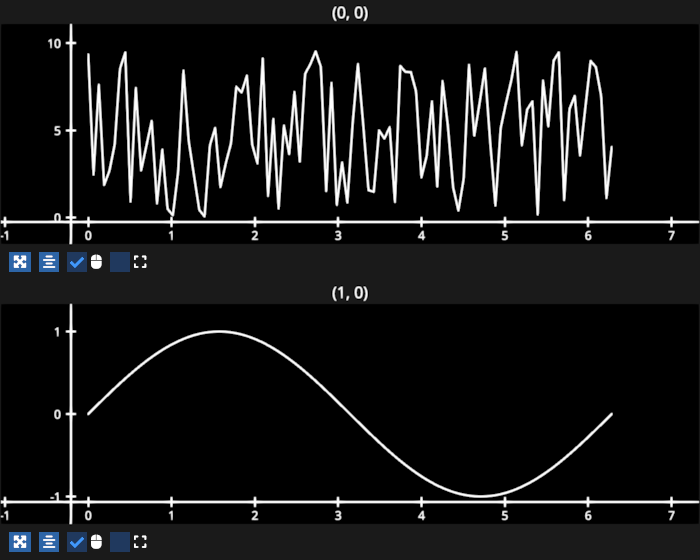
# test_example = false

import numpy as np
import fastplotlib as fpl
import pygfx

xs = np.linspace(0, 2 * np.pi, 100)
ys = np.sin(xs)

ys_big = np.random.rand(100) * 10

# create cameras, fov=0 means Orthographic projection
camera1 = pygfx.PerspectiveCamera(fov=0)
camera2 = pygfx.PerspectiveCamera(fov=0)

# create controllers, first add the "main" camera for the subplot
controller1 = pygfx.PanZoomController(camera1)
controller2 = pygfx.PanZoomController(camera2)

# add the other camera to each controller, but only include the 'x' state, i.e. 'y' for height is not included
# this must be done only after adding the "main" cameras to the controller as done above
controller1.add_camera(camera2, include_state={"x", "width"})
controller2.add_camera(camera1, include_state={"x", "width"})

# create figure using these cameras and controllers
figure = fpl.Figure(
    shape=(2, 1),
    cameras=[camera1, camera2],
    controllers=[controller1, controller2],
    size=(700, 560)
)

figure[0, 0].add_line(np.column_stack([xs, ys_big]))
figure[1, 0].add_line(np.column_stack([xs, ys]))

for subplot in figure:
    subplot.camera.zoom = 1.0

figure.show(maintain_aspect=False, autoscale=True)

# NOTE: fpl.loop.run() should not be used for interactive sessions
# See the "JupyterLab and IPython" section in the user guide
if __name__ == "__main__":
    print(__doc__)
    fpl.loop.run()
Total running time of the script: (0 minutes 0.151 seconds)